
Streamlining Service: How to Configure Appointment Booking in the ServiceNow Employee Center
- SnowGeek Solutions
- 1 day ago
- 5 min read

I have witnessed firsthand how a seamless appointment booking experience can transform the way organizations deliver internal services. When employees can easily schedule time with HR, IT support, or facilities teams, the entire service ecosystem elevates to unprecedented heights. At SnowGeek Solutions, we specialize in configuring ServiceNow Appointment Booking within the Employee Center to maximize HR efficiency and streamline the employee experience.
This guide will walk you through the essential steps to configure appointment booking in your ServiceNow Employee Center. Whether you're setting up walk-up support desks, HR consultation slots, or IT assistance windows, I will guide you through every critical configuration element with precision and clarity.
Why Appointment Booking Matters for Your Organization
Gone are the days when employees had to wander over to a support desk, hoping someone was available. Modern service delivery demands operational excellence, and that starts with empowering employees to book appointments on their own terms.
ServiceNow Appointment Booking eliminates the frustration of wait times, reduces no-shows through automated reminders, and gives your service teams the visibility they need to manage workloads effectively. For HR teams, this translates to better resource planning and more meaningful interactions with employees. For IT support, it means reduced queue chaos and improved first-contact resolution rates.
The Employee Center serves as the central hub where employees access services, and integrating appointment booking capabilities creates a comprehensive self-service experience that drives satisfaction and efficiency.
Getting Started: The Initial Setup
Before diving into the detailed configurations, you need to ensure your ServiceNow instance is properly prepared for appointment booking functionality.
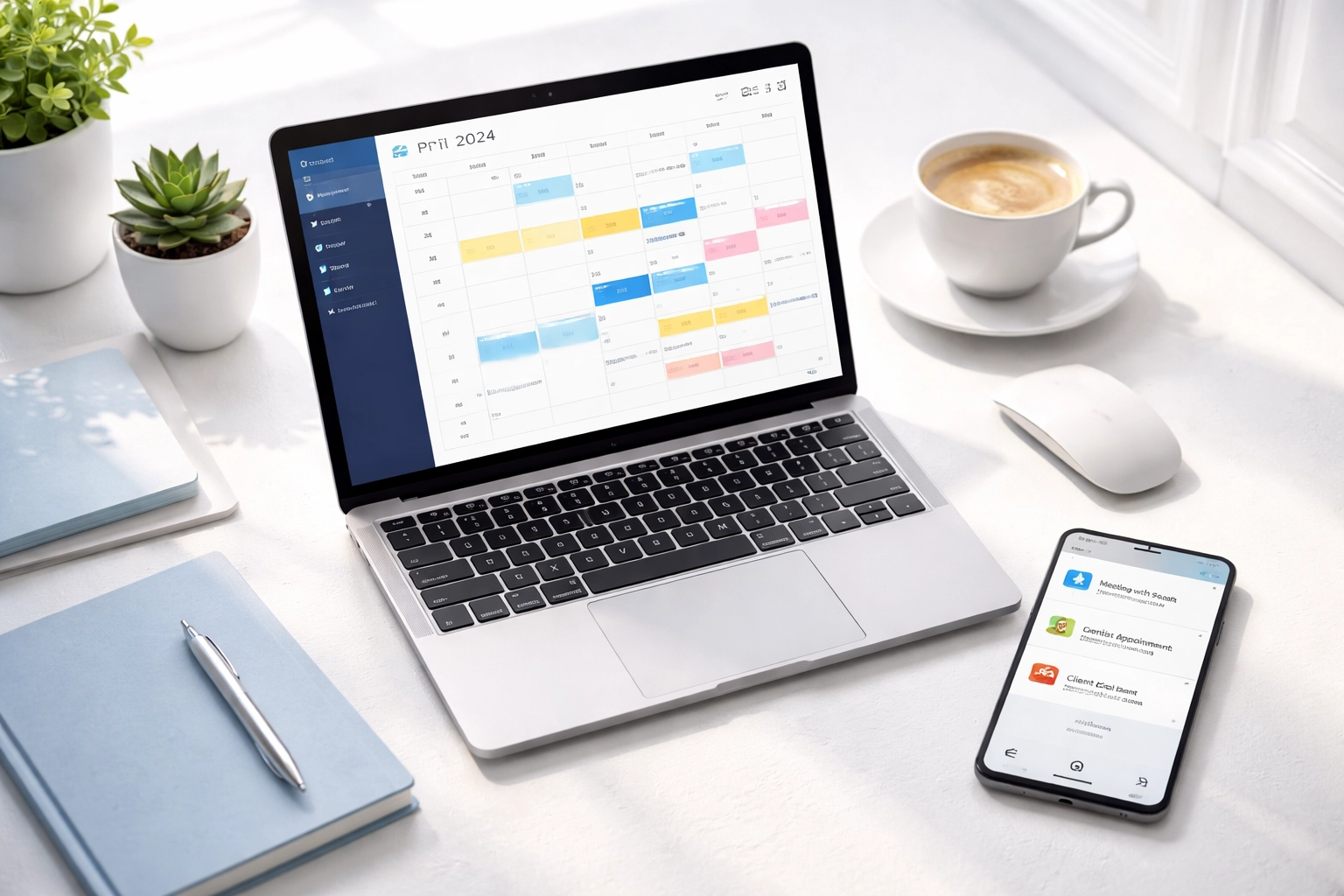
First, navigate to the Employee Center appointment booking setup menu. The critical first step is to opt in to booking from the Employee Center by accessing Appointment Booking > Setup. This activation enables the core functionality required for everything that follows.
Next, navigate to All > Appointment Booking > Appointment Booking Configuration to begin creating your configuration records. This is where the real work begins, and I encourage you to approach this systematically rather than rushing through the settings.
At SnowGeek, we always recommend documenting your current service delivery workflows before configuration. Understanding how your teams currently handle appointments: even informal ones: provides essential context for designing your digital booking experience.
Application and Service Configuration
The foundation of any successful ServiceNow Appointment Booking implementation lies in properly establishing your application and service configurations. Think of this as building the framework upon which all scheduling logic will operate.
Creating Application Configuration
Start by creating a new application configuration that defines the overarching parameters for your booking system. This configuration acts as the parent container for all your service-specific settings.
Establishing Service Configurations
For each location, queue, or service type that requires appointment booking, you'll need to create dedicated service configurations. This granular approach allows you to tailor the booking experience to different organizational needs.
The Appointment Booking Service Configuration form contains several critical fields:
Name: Choose a clear, descriptive identifier that your administrators can easily recognize
Active: This toggle enables or disables appointment booking for the specific service: when disabled, employees can still create work orders but cannot schedule specific appointment times
Service: Link to the associated service from your service catalog (note that you must create a record producer for each walk-up service location)
Location: This field on the record producer determines appointment location, ensuring proper alignment with your Walk-up Location Queue configuration and time zones

Configuring Essential Booking Parameters
The booking parameters section is where you define the rules that govern when and how employees can schedule appointments. Getting these settings right is essential for balancing employee convenience with operational practicality.
Lead Time Configuration
The lead time parameter determines how many hours or days from the current moment must pass before an appointment becomes bookable. The default setting is 4 hours, which prevents last-minute bookings that could disrupt your team's workflow.
I recommend adjusting this based on your service complexity. For quick IT troubleshooting sessions, 2-4 hours may suffice. For comprehensive HR consultations that require preparation, consider extending this to 24-48 hours.
Future Booking Limits
The future bookable max days setting controls how far in advance employees can schedule appointments. The default is 14 days, striking a balance between planning flexibility and schedule accuracy.
For seasonal services or high-demand periods, you might extend this window. For services with frequently changing availability, a shorter window reduces the likelihood of cancellations and reschedules.
Reschedule and Cancellation Windows
The reschedule/cancel by time parameter specifies how many hours or days before an appointment start time the cancellation option becomes unavailable. The default 4-hour window prevents last-minute no-shows while still offering reasonable flexibility.
Appointment Slots and Duration
Two interconnected settings demand careful attention:
Appointments per window: Defines how many slots are available for each time period (particularly relevant when assignment is set to manual)
Appointment window: Specifies the duration of each appointment slot
At SnowGeek, we've observed that organizations often underestimate appointment duration initially. I strongly suggest padding your estimates by 10-15% to account for natural conversation overflow and transition time between appointments.
Daily Schedule Configuration
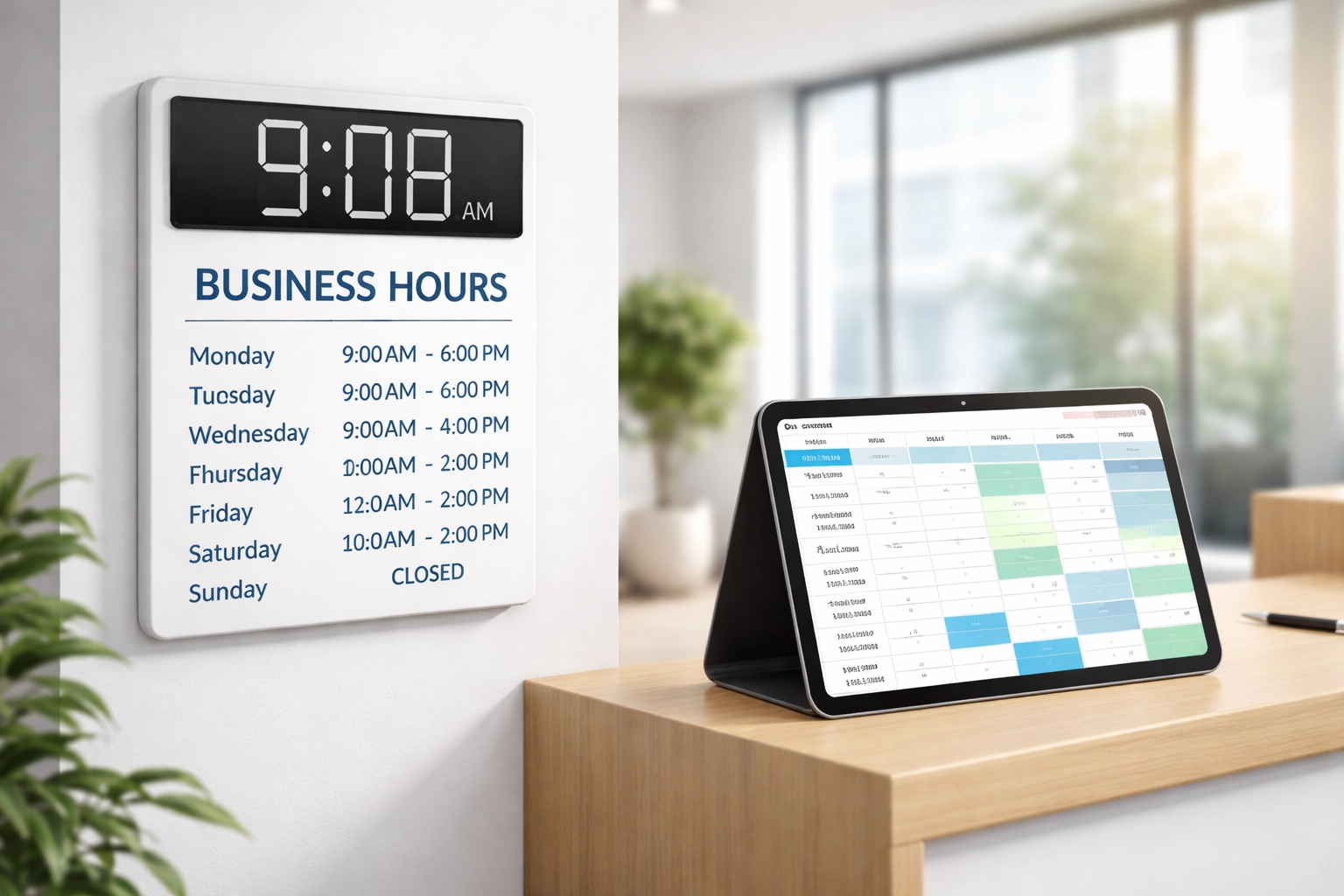
Your daily schedule configuration translates your operational hours into bookable time slots. This section requires alignment between your ServiceNow settings and your actual team availability.
Defining Bookable Days
The bookable days setting determines which days of the week allow scheduling. The default configuration includes Monday through Friday, but your organization may require weekend availability for certain services or restricted days for others.
Setting Operating Hours
Configure your daily start time and daily end time to reflect when appointments can begin and end. The defaults of 9:00 and 18:00 work for standard business hours, but global organizations or shift-based teams will need customization.
Managing Breaks
Enable the include daily break option to schedule lunch breaks or other regular pauses. This prevents appointments from being booked during times when your team is unavailable, maintaining realistic expectations for employees.
Advanced Configuration and Best Practices
ServiceNow provides remarkable flexibility for tailoring appointment booking to specific organizational needs. Here are advanced considerations that separate good implementations from exceptional ones.
Variable Time Slots
Different appointment types may require different durations. A laptop repair consultation might need 60-minute slots, while a quick password reset appointment only requires 15 minutes. Configure separate service configurations to accommodate these variations rather than forcing a one-size-fits-all approach.
Holiday and Availability Integration
The system can factor in local holidays and individual agent availability when calculating available time slots. Leverage these capabilities to ensure employees never book appointments during times when service isn't actually available.
Using the Preview Feature
Before finalizing any configuration, use the Appointment booking preview feature extensively. This tool verifies that your selected start times, end times, break times, and appointment window duration generate the correct appointment slots. I cannot overstate how much troubleshooting time this preview saves.

Maximizing HR Efficiency Through Strategic Configuration
For HR teams specifically, Employee Center configuration with appointment booking capabilities drives transformative improvements in service delivery. Employees can schedule benefits consultations, performance review discussions, or onboarding sessions without endless email exchanges.
The data captured through appointment booking also provides invaluable insights. HR leaders can analyze peak demand times, identify services requiring additional staffing, and measure employee engagement with self-service tools.
At SnowGeek Solutions, we help organizations configure these systems with strategic foresight, ensuring that technical settings align with broader HR transformation goals.
Your Path to Seamless Appointment Management
Configuring ServiceNow Appointment Booking in the Employee Center represents a significant step toward operational excellence. When executed with precision, this capability reduces administrative burden, improves employee satisfaction, and provides your service teams with the structure they need to deliver exceptional support.
The configuration process demands attention to detail, but the results speak for themselves. Organizations we've partnered with consistently report reduced wait times, improved resource utilization, and employees who actually enjoy interacting with internal service teams.
Ready to transform your Employee Center into a comprehensive service delivery powerhouse? The appointment booking configuration journey starts with understanding your unique organizational needs: and implementing settings that turn those needs into seamless success stories.
Comments